
Use the appropriate method below based on your location and type of computer:
Method 1: Change your password using a work issued computer in the office.
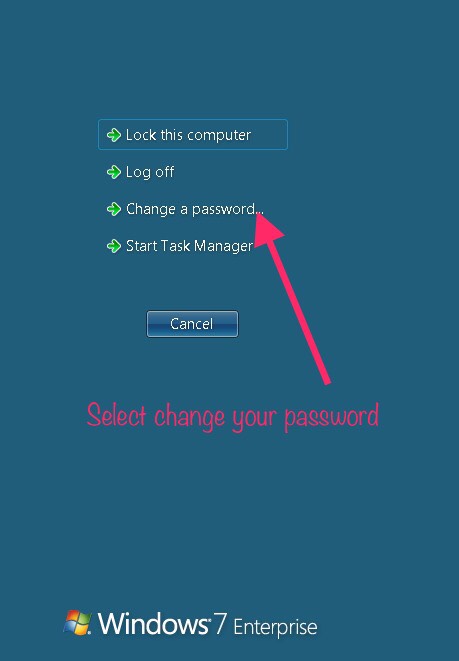
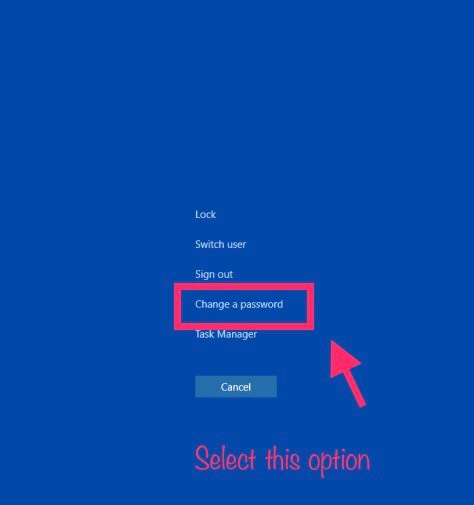
- Step 1: Press CTRL + ALT + DELETE and click change password
- Step 2: Enter your details
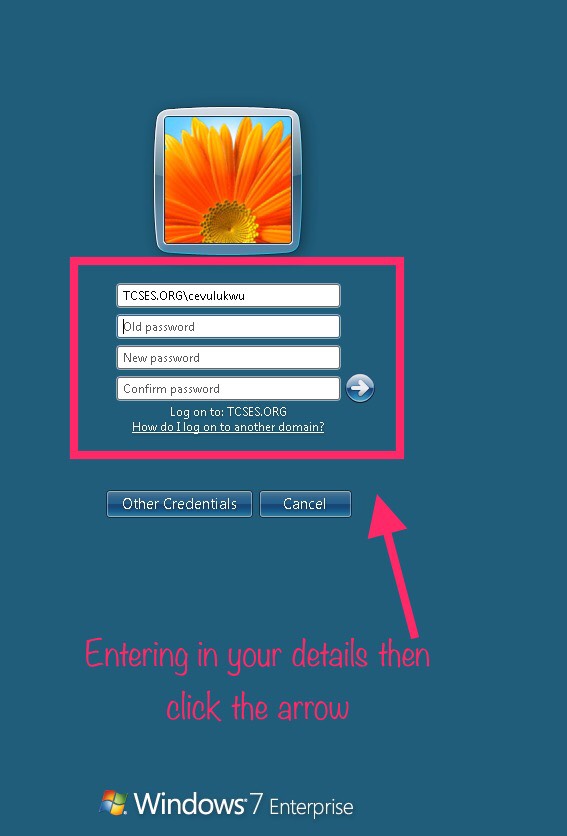 Once you click the arrow if you followed the requirements it will successfully change the password
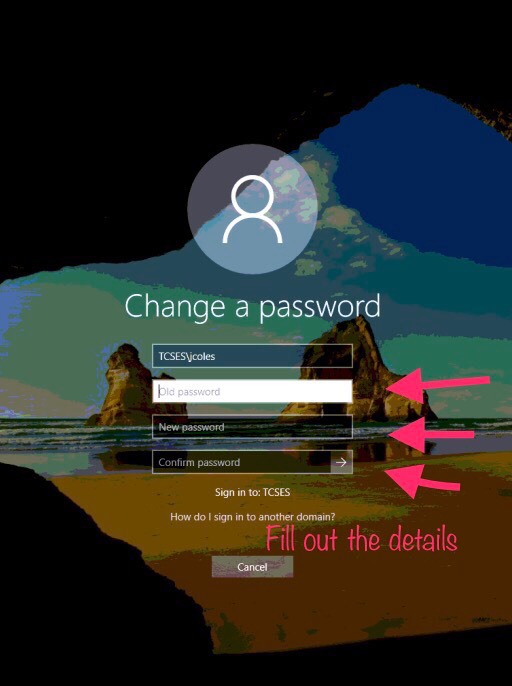 Once you click the arrow if you followed the requirements it will successfully change the password
Method 2: Change your password using a work issued computer -NOT- in the office.
Connect to the VPN and follow the directions above for in office users.If VPN is not available?
Proceed to the Passwood Reset Utility!
Note: If you are using a work issued computer, not connected to our VPN or in the office and changed your password using the Password Reset Utility:
Continue to use your old password while logging into your computer until you connect to the VPN or come into the office.
Method 3: Change your password using a personal computer.
Proceed to the Passwood Reset Utility!To update your devices, please follow the directions below.
Android Devices
- Step 1: Open your work email and click on settings

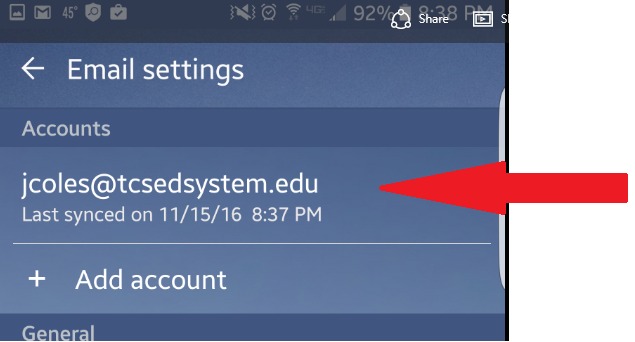
- Step 2: Click on your work email address
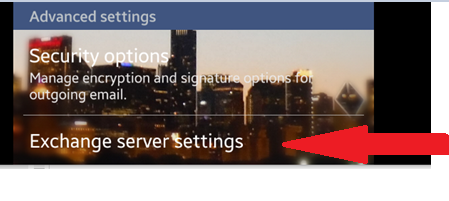
- Step 3: Scroll down to Exchange Server Settings and click on it
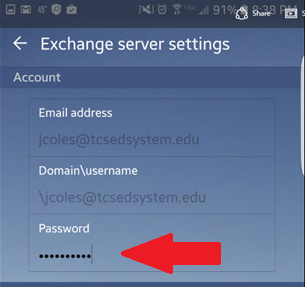
- Step 4: Update your password and click done
For Default Mail App
- Step 1: Go to your phone settings.
Step 2: Click on your work email address.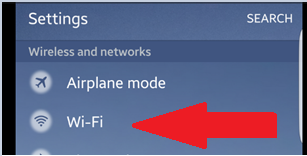
- Step 3: Click on Faculty
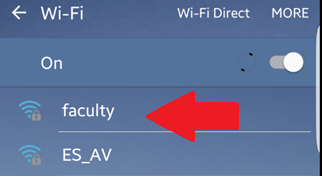
- Step 4: Click Connect
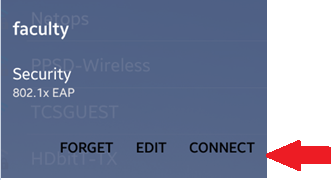
- Step 5: Enter in your new network password that you changed on your PC and click connect
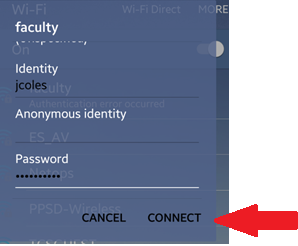
- Step 6: You should be redirected to the Faculty network showing your status as connected
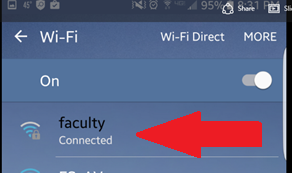
For Wireless
Apple Devices
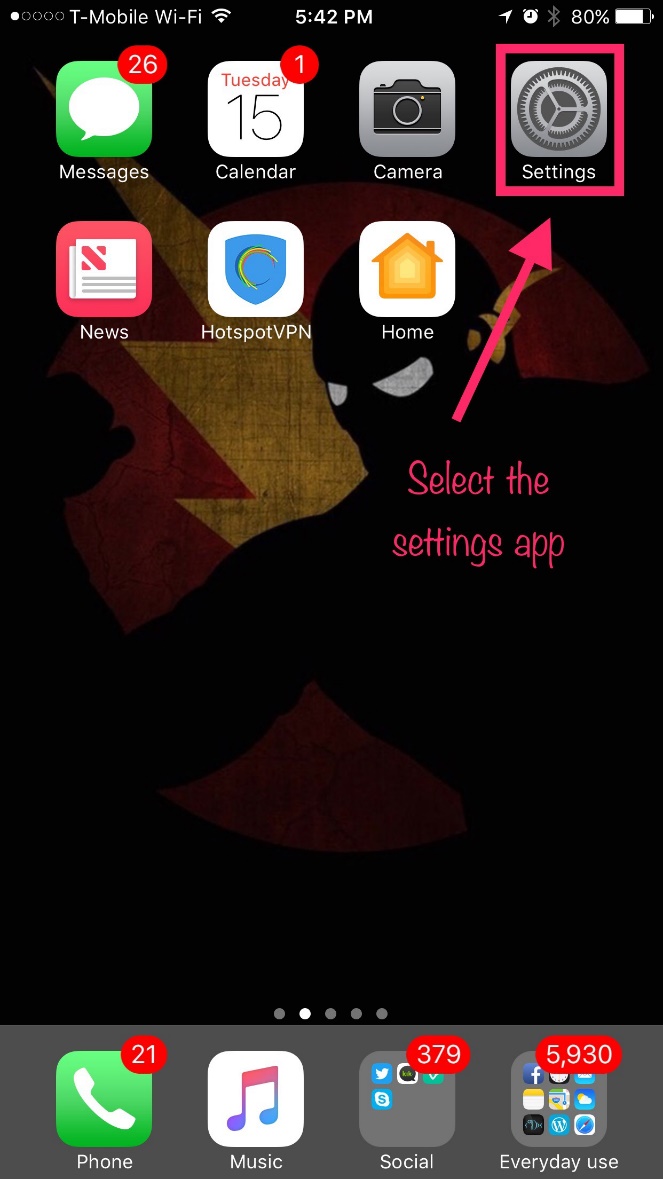
- Step 1: Click Settings
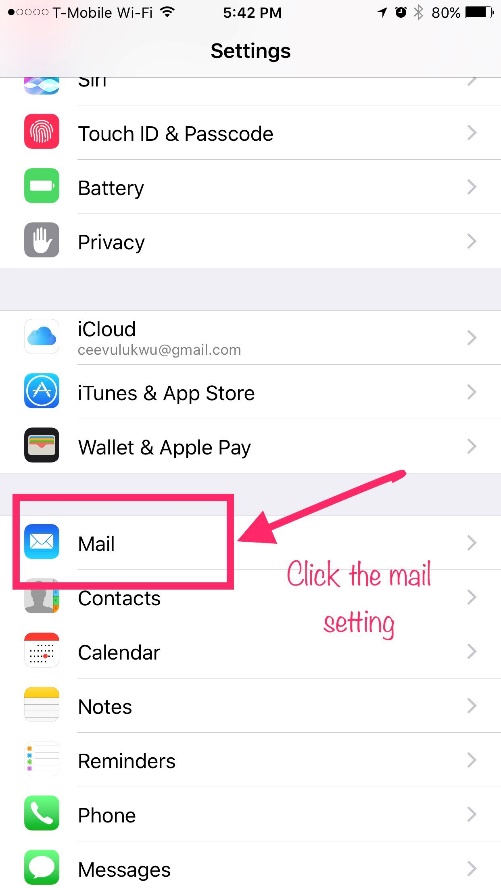
- Step 2: Click Mail
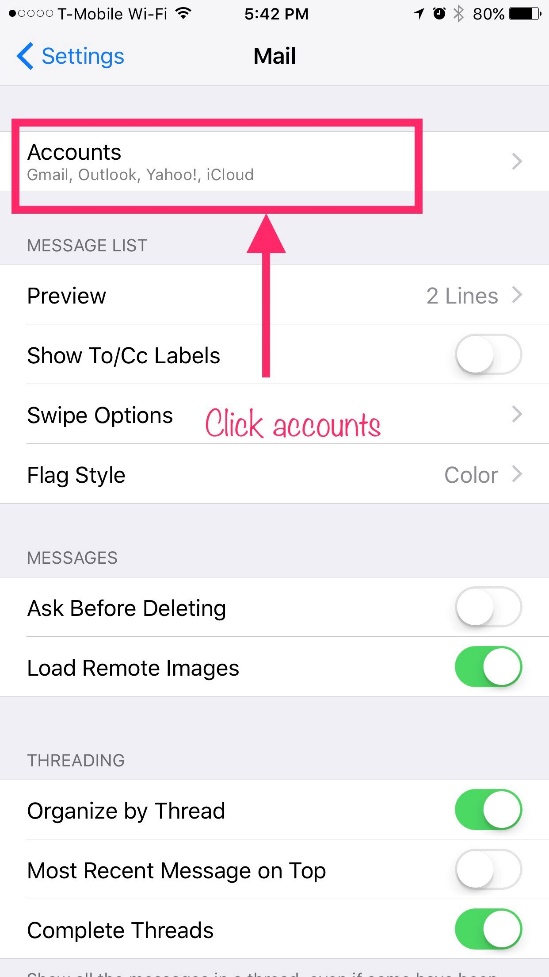
- Step 3: Click Accounts
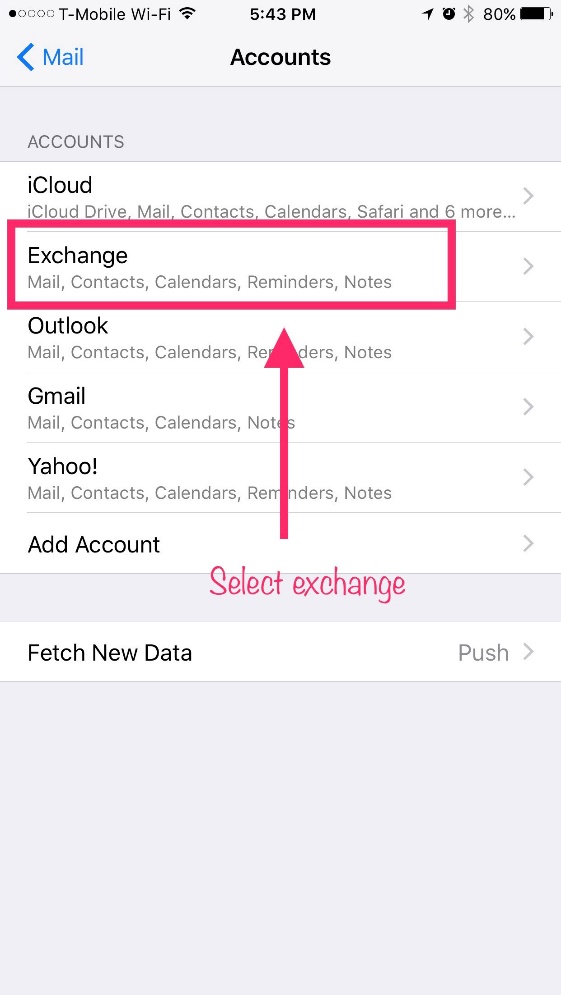
- Step 4: Click on your work email
- Step 5: Click on account
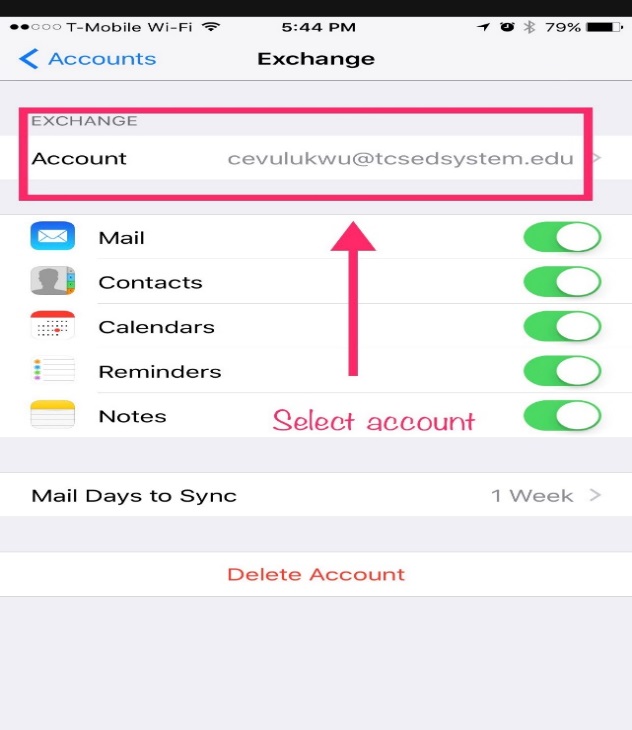
- Step 6: Click on account
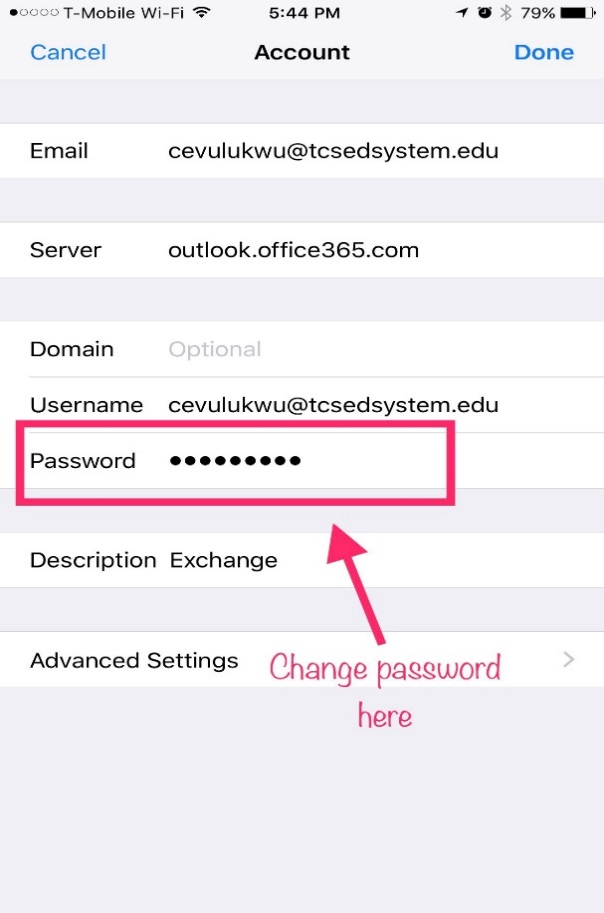
Default Mail App
- Step 1: Click Settings
- Step 2: Click Wifi
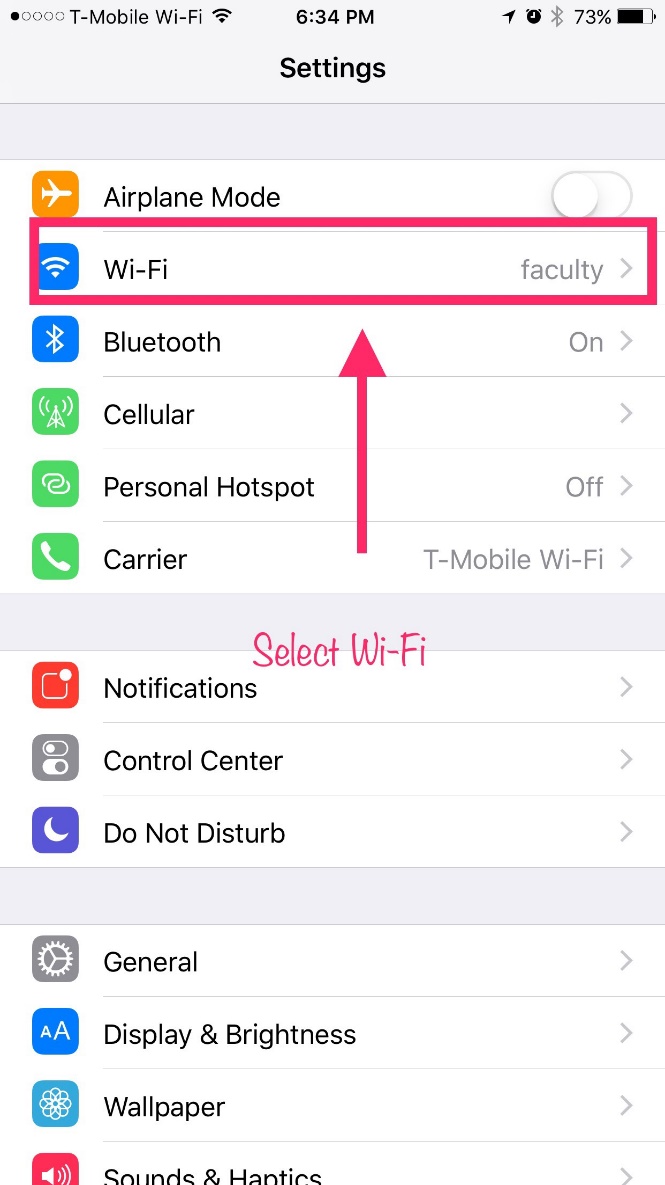
- Step 3: Click the I on the wifi
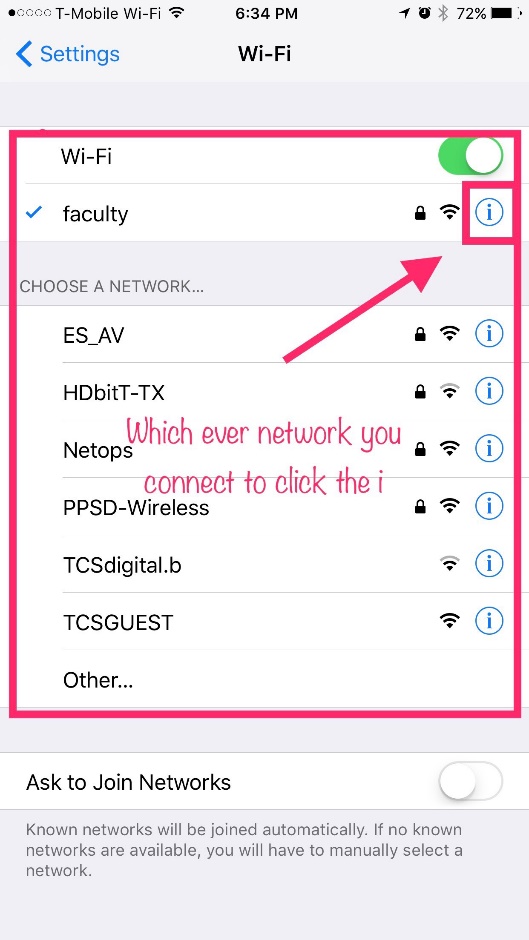
- Step 4: Click Forget the network
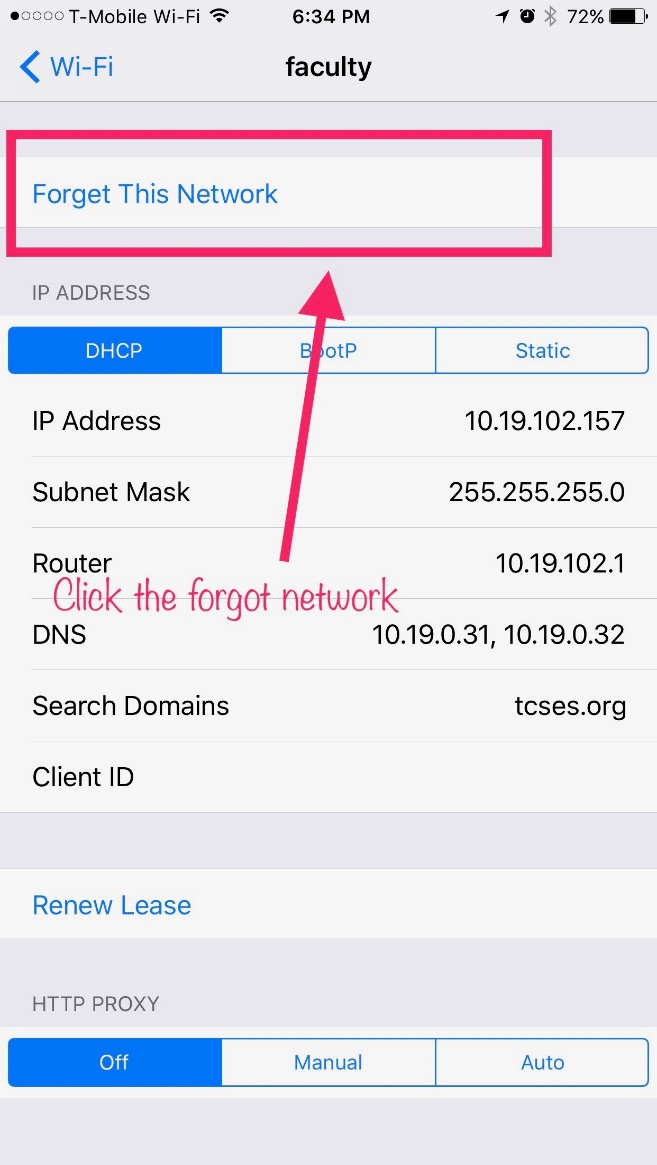
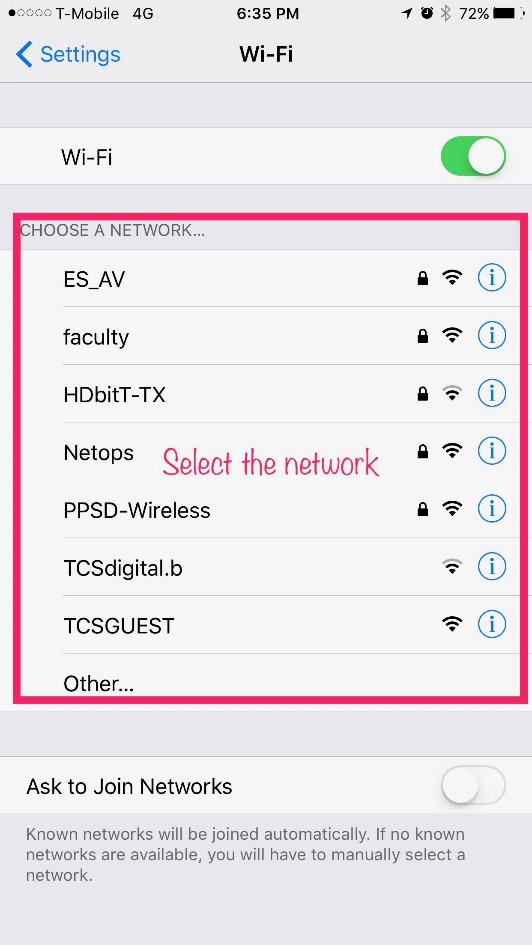
- Step 5: Click the Network
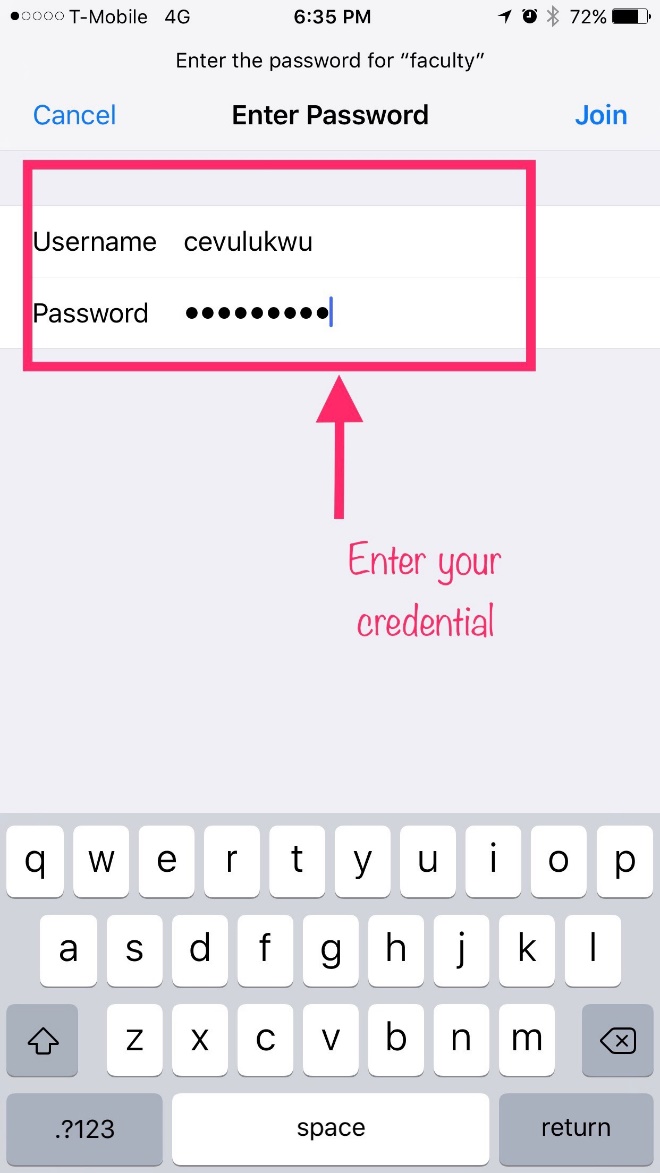
- Step 6: Enter in your Credentials
- Step 7: Click Trust
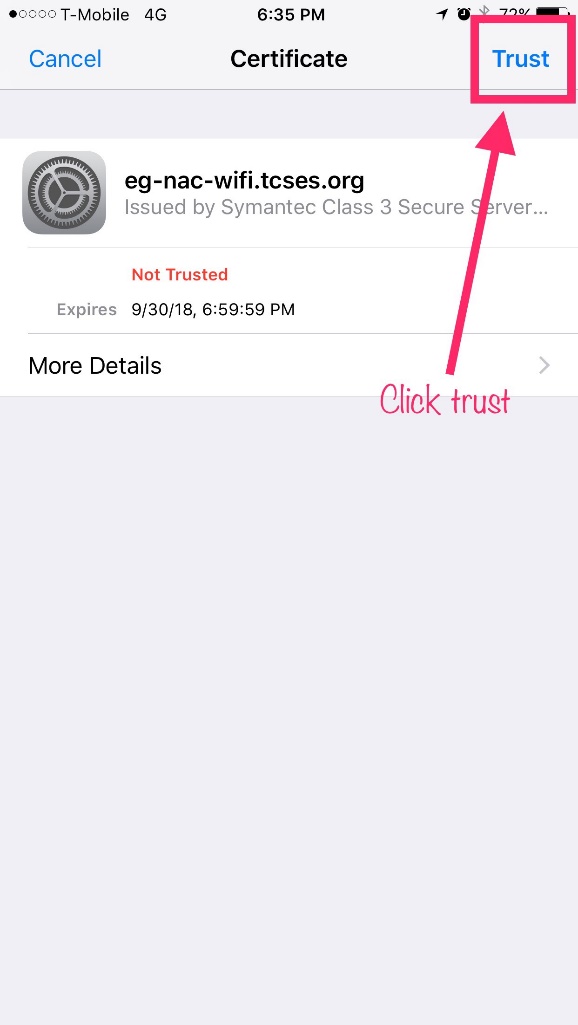
- Step 8: Now you are connected!
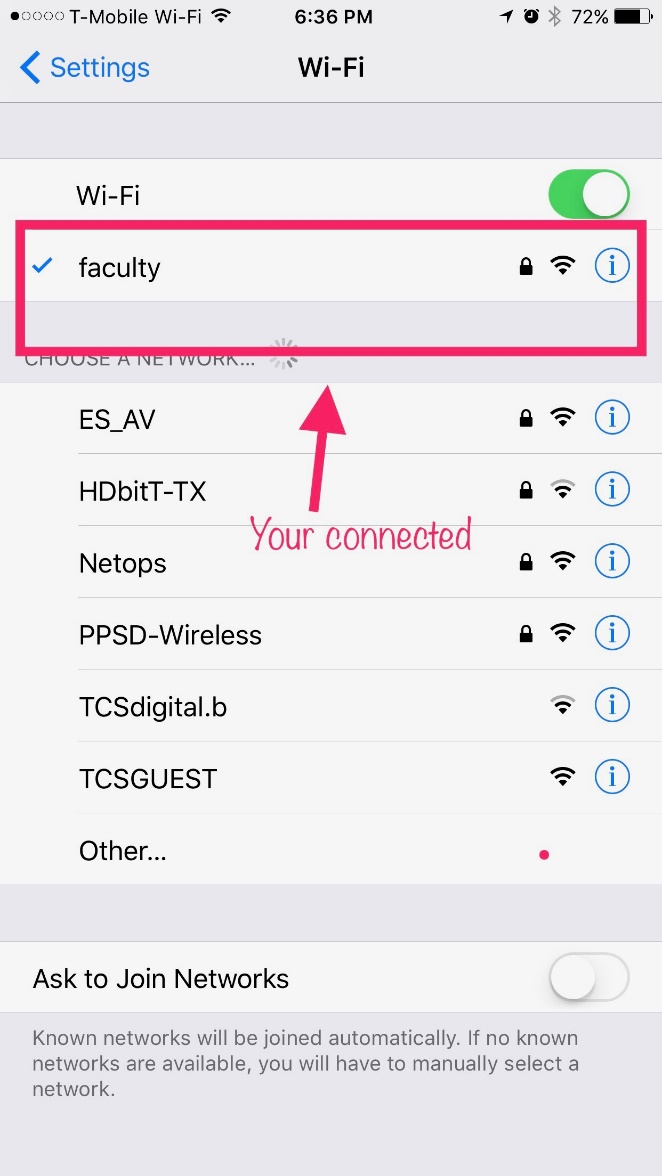
For Wireless
- Must be a minimum length of at least eight characters.
- Contains upper case letter, lower case letter and a number or special character.
- Passwords may not include any part of your name.
- New passwords cannot be the same as the four previously used passwords.
- The Help Desk can reset your password and give you a one-time-use password.
- When you log in using that password, you will be prompted to provide a new one.
- Never!
- All passwords should be treated as sensitive, confidential information, and are not to be shared with anyone else, including co-workers, managers, administrative assistants, IT staff members, or others.
- Everyone who needs access to a system will be given their own unique password.
Proceed to the Passwood Reset Utility!